
Korean Business Registration: How Kontactic Checks
You upload your Korean business registration certificate, but it still shows the company’s former address. Kontactic Seller Center compares the certificate’s address and representative with the address and representative entered for the entity. If either value differs, it shows a red warning, sends an immediate notification, and keeps the setup step incomplete.
You can find the mismatch as soon as you upload the certificate. A misspelled representative triggers the same response as an old address. The warning remains on the step until you fix it.
Why an old address or misspelled representative causes rework
A certificate can be the right document and still carry an old detail. A brand may have changed its registered address while the certificate uploaded during Korean entity setup still shows the former address. A representative’s name can also be typed differently on the certificate and in the entity fields.
If someone finds the difference only after the document is accepted, the team must pause and determine which value is current. It may need to find the latest certificate, correct the entity fields, or provide the right document. The exact correction depends on the field that is wrong. The avoidable problem is finding the mismatch late.
Kontactic puts the comparison in the upload step. You see the warning while the setup step is still open, not after the setup appears finished. Start with the representative and registered address named in the warning. Then check which document or entity field is out of date or misspelled.

What Seller Center compares at upload
During entity setup, you upload the Korean business registration certificate. Seller Center compares two certificate fields with the matching fields entered for the entity:
| On the certificate | In the entity fields |
|---|---|
| Listed representative | Representative |
| Registered address | Address |
The comparison is field by field. An address can match while the representative is misspelled, and the upload will still be a mismatch. Both fields do not need to be wrong.
A mismatch can be small. One spelling difference in the representative’s name is enough. An address can be correct on an older certificate and still be the wrong value for the entity details now being prepared.
Seller Center compares the certificate with the representative and address entered for the entity. It does not decide why the values differ or which value you should keep. You still need to check which document or entity field contains the current information.
Someone may already have confirmed that the file is present. That does not show that the certificate and entity fields agree. Seller Center checks these two entries during upload.
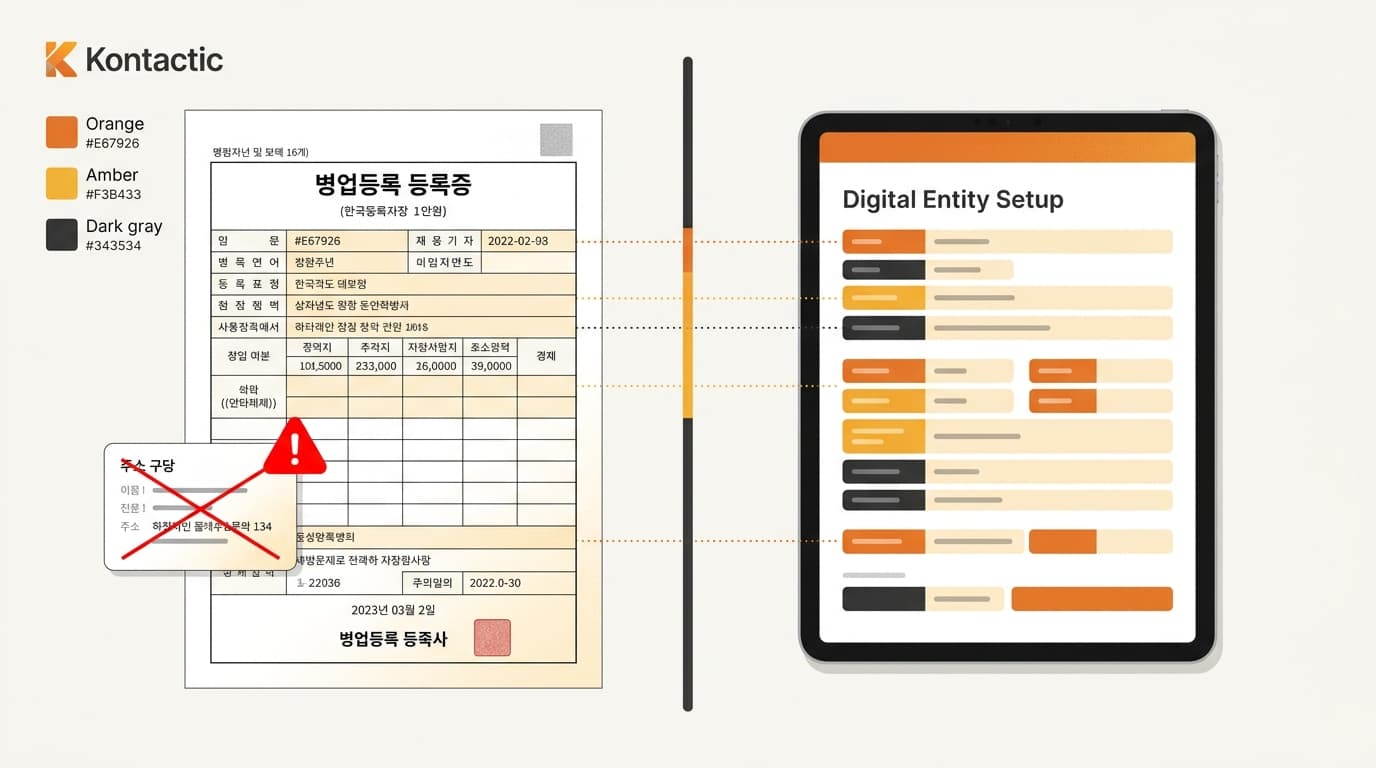
What happens when one field does not match
The check follows five steps:
- You upload the Korean business registration certificate during entity setup.
- Seller Center compares the listed representative and registered address with the entity fields.
- If either value differs, Seller Center shows a red warning.
- Seller Center sends an immediate notification about the mismatch.
- The setup step stays incomplete while the mismatch remains.
The fifth step is the control. The block applies to the setup step containing the mismatch. Seller Center does not silently replace one value with the other, and the warning does not identify the correct value.
The notification prompts the team to compare the certificate with the representative and address entered for the entity while the correction is still easy. Treat the red warning as a specific instruction. Check the representative and address, find which source is current, and fix the document or entity field before trying to finish the step.

Worked example: the certificate still shows the former address
Consider a Western brand preparing its Korean entity details after moving to a new registered address.
- The entity fields being prepared contain the new address.
- The brand uploads a Korean business registration certificate.
- The certificate still shows the former address.
- The listed representative matches, but the address does not.
- Seller Center shows a red warning and sends an immediate notification.
- The setup step stays incomplete until the address mismatch is resolved.
The brand can now check the certificate and the entity fields, identify which address is current, and fix the document or entry that is out of date. Seller Center does not choose between the former and current address. It catches the disagreement while the brand can still correct the setup.
The same one-field rule applies when the address matches but the representative is misspelled. The address example shows the full sequence without requiring both fields to be wrong.
What changes for the brand team
Before this check, a team could confirm that a certificate had been uploaded without comparing its key details with the entity information being prepared. The file could be present while an old address or spelling error required work later.
With this check, uploading the certificate also compares its representative and address with the entity fields. The practical change is timing: the team sees the disagreement during upload, while the setup step is still open.
When a warning appears, use this order:
- Read the representative shown on the certificate.
- Read the representative in the entity fields.
- Compare the registered addresses in the same way.
- Correct the value or document that is out of date.
- Complete the setup step only after the mismatch has been fixed.
This order keeps the review focused. You do not need to search every part of the certificate to explain a warning about two specific fields.
What this check covers—and what it does not
The update described here covers two comparisons: the listed representative and the registered address. It checks the uploaded certificate against the entity details being prepared.
It does not silently correct the certificate. It does not choose which address or representative to use. It shows that the two entries differ, so the brand or setup team can check the current information and fix the right item.
A warning-free result for these two fields does not mean that every other setup task is complete. It means the representative and registered address match the details being prepared for this check.
The warning points the seller to the two fields to review. The setup step stays open if the uploaded document has an old address or misspelled representative.
Need to review your Korean entity setup?
Contact Kontactic to discuss the representative, address, and registration details you need to prepare for a Korean entity setup.
About the author
Korean and global e-commerce operators with 15+ years of cross-border experience, led by CEO Isaac Lee — KOTRA-certified consultant and official lecturer for Seoul City and the Korea Customs Service. We run Korea market entry for overseas brands every day; this blog records what we learn in the field.
More about Kontactic →Related Articles

Does My Korean Importer Need a License for This Product?
A Korean importer may need a license or permit even when product documents are complete. Seller Center separates the two checks and lists what to prepare next.

Import a Product Into Korea, But Can't Sell on Coupang?
Importing a product into Korea does not guarantee Coupang sales. Learn how SKU review separates import permission, online-sale rules, and importer permits.

What Happens After Your Korean Coupang Page Is Finished?
After your Korean Coupang page is finished, see the real page, follow the same instructions in Seller Center and email, and get reminders only if needed.